Installation Guide
Getting Started
with AirSync
Follow these steps to set up your AirSync device and start syncing flight data automatically.
Account Setup
HideShow
01
Go to the AirSync Website
- Go to air-sync.com.
- Tap the Login button.
- Scroll down and select Create a Free Account.
02
Set Up Aircraft
After logging in, select "Set up a new aircraft" to begin the configuration process.
03
Activation Code
Check your email for the activation code (e.g. ABCD1234), sent from donotreply@air-sync.com.
04
Billing Account
If you're new, follow the prompt to set up a billing account. Your card will not be charged without your knowledge.
05
Aircraft Details
- Select your aircraft's make, model, and avionics.
- Enter your tail number and total flight time.
06
Enter User Codes
- Locate the user codes for both the bridge and the SD card on your unit.
- Enter both codes into the setup form.
07
Default Profile
Select a user profile if you are copying over permissions from another aircraft.
08
3rd Party Integration Professional Tier
Integration with 3rd party software is available to Professional Tier customers.
- Select the services you'd like AirSync to send your recorded data to.
09
Confirm Details
- Enter your aircraft serial number.
- Review and confirm all information before proceeding.
Watch the Walkthrough
Prefer to watch instead of read? This video covers every step in this guide, start to finish.
Hardware Installation
10
SD Card Setup Garmin Panels Only
- Insert the SD card into your avionics. SD card lookup
Tip: Avidyne, Garmin GI 275 and Collins ProLine 21/Fusion panels do not use the AirSync SD Card.
11
Connect the Power Cable
- Plug the Bridge cable into a USB-A or USB-C port.
- Use a port on the same battery as the MFD.
Tip: The Bridge must be powered from the same source as the avionics writing to the SD card, so it powers on and off together with your avionics.
12
AirSync Switchcraft Installation
If you wish to build out a designated power supply for the AirSync system, please contact our support team for the installation document.
Tip: Power the bridge from the same battery as the MFD for best performance.
SD Card Position Lookup
Select your avionics to see where the AirSync SD card goes.
Tip: Avidyne, Garmin GI 275 and Collins ProLine 21/Fusion panels do not use the AirSync SD Card.
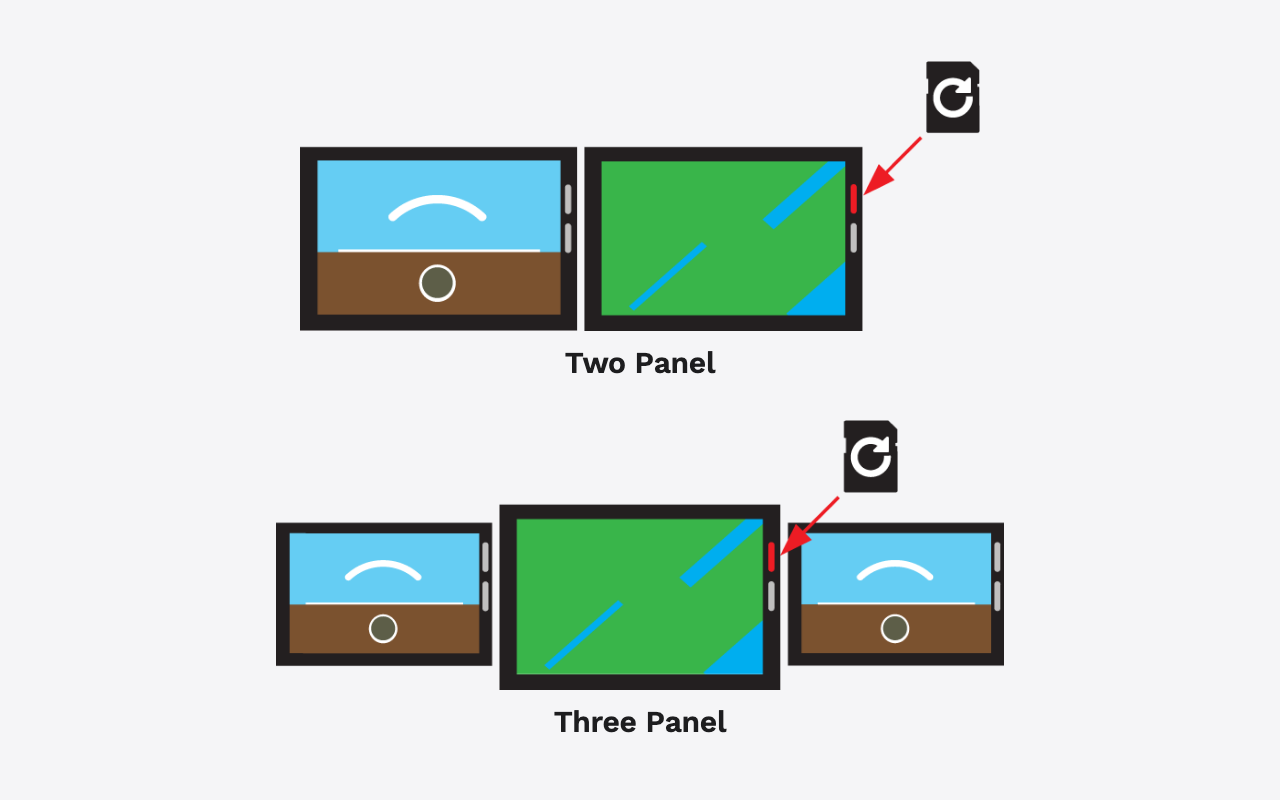
Insert the SD card into the labeled slot on your G1000 / G1000 NXi display.
AIM Install
13
AIM Installation Documents
If you want the AIM Installation documents, please contact our sales team and provide your sales information.